
Part 1: Google Tag Manager (GTM) Setup
Step 1: Open Google Tag Manager
- Log in to Google Tag Manager.
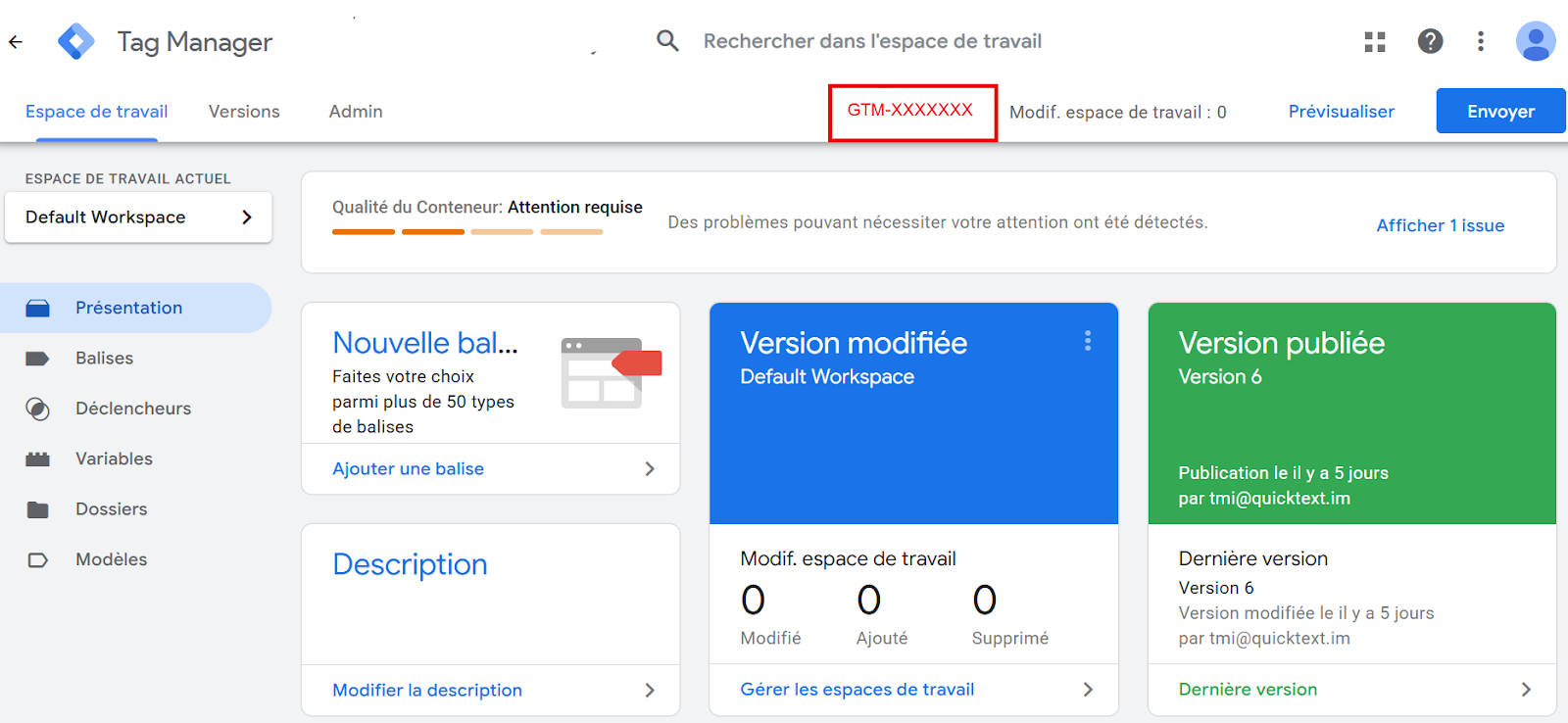
- Open the container used on your website (ex. GTM-XXXXXXX).
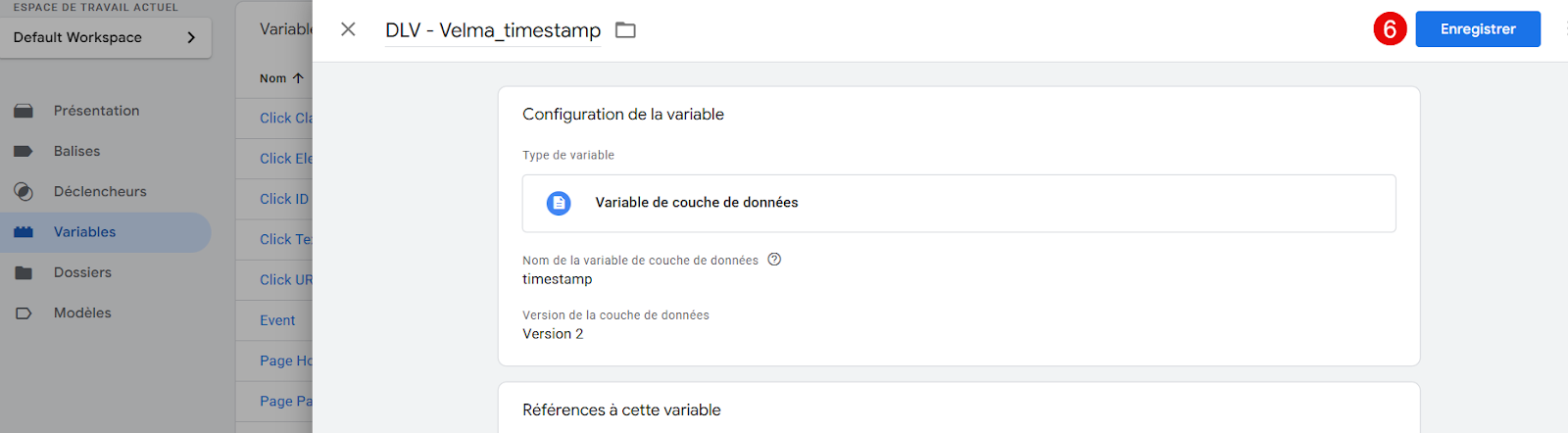
Step 2: Create a Timestamp Variable
Optional. Only useful if you want to send the timestamp to GA4.
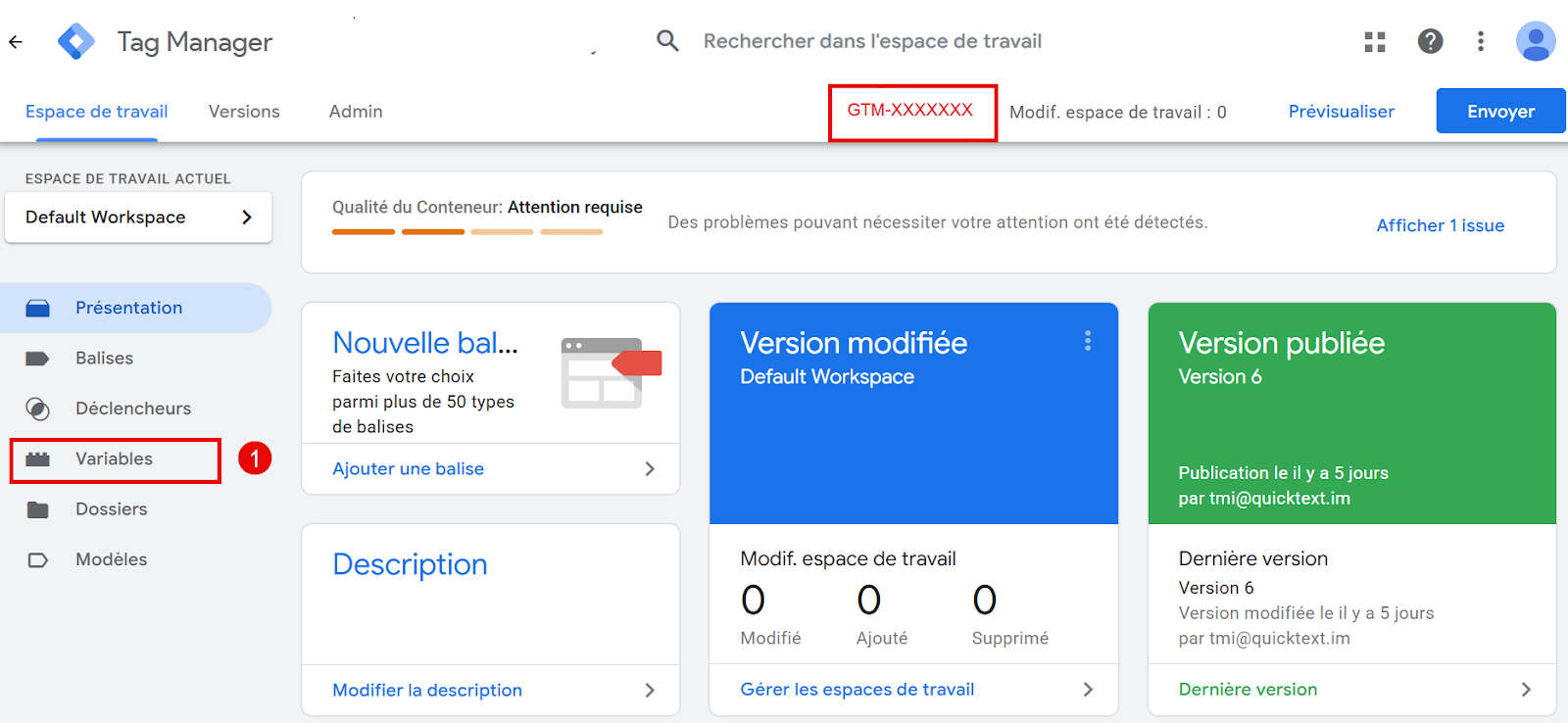
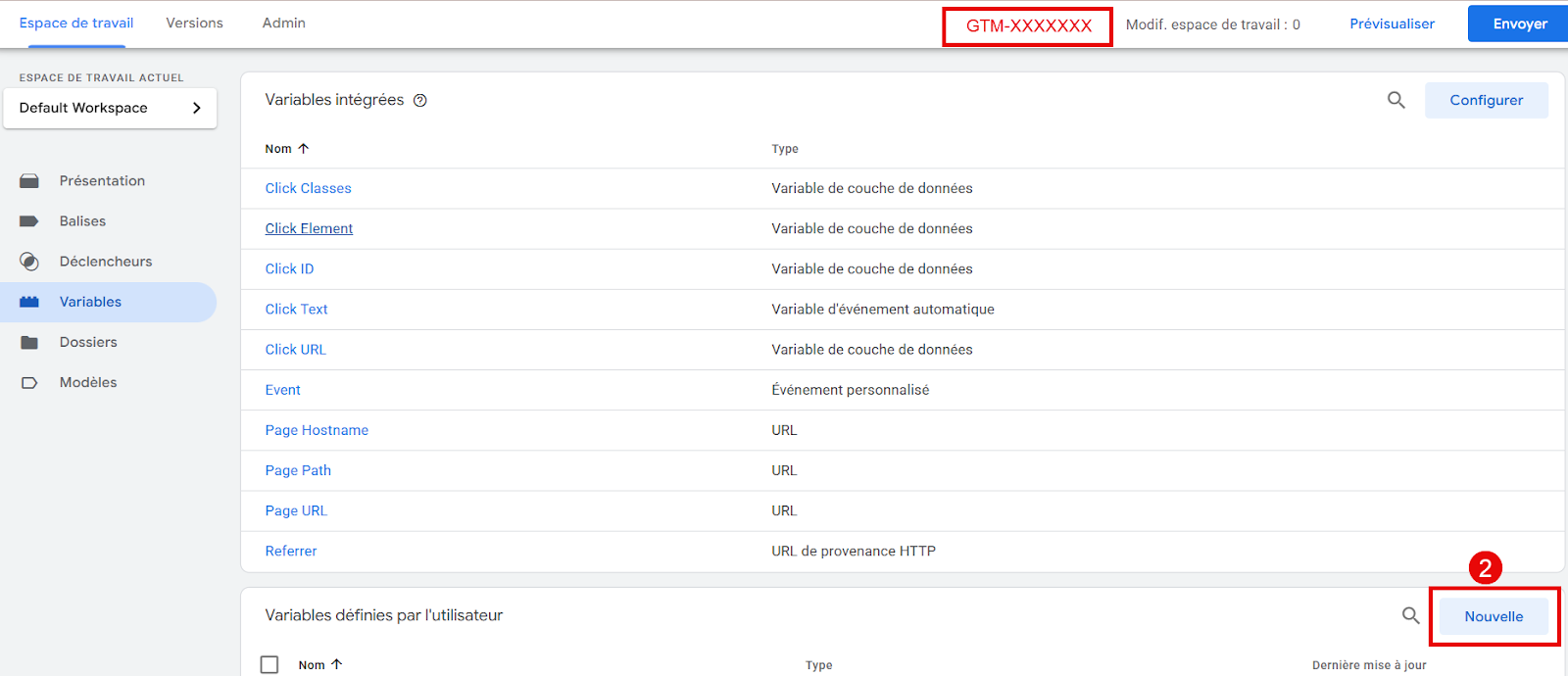
- Go to Variables → New.
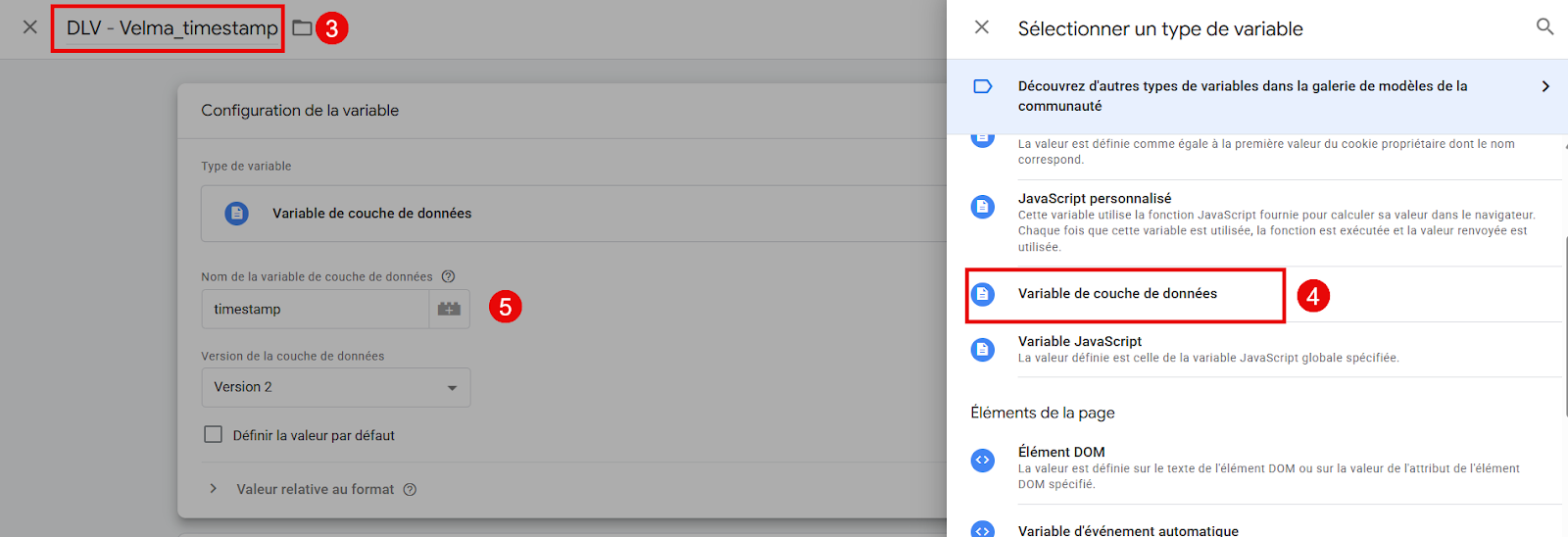
- Type: Data Layer Variable.
- Name: DLV - velma_timestamp / Data Layer Variable Name: timestamp.
- Save.
Step 3: Create a Trigger
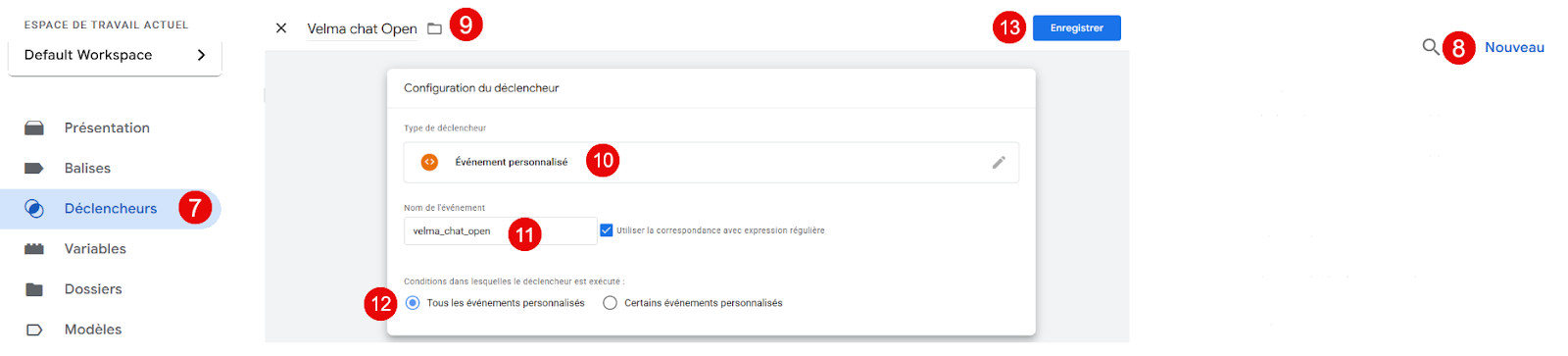
This trigger listens for the velma_chat_open event.
- Go to Triggers → New.
- Name: Trigger - Velma Chat Open
- Type: Custom Event / Event name: velma_chat_open
- Fires on: All Custom Events
- Save.
Step 4: Create the GA4 Event Tag
This tag sends the event to GA4.
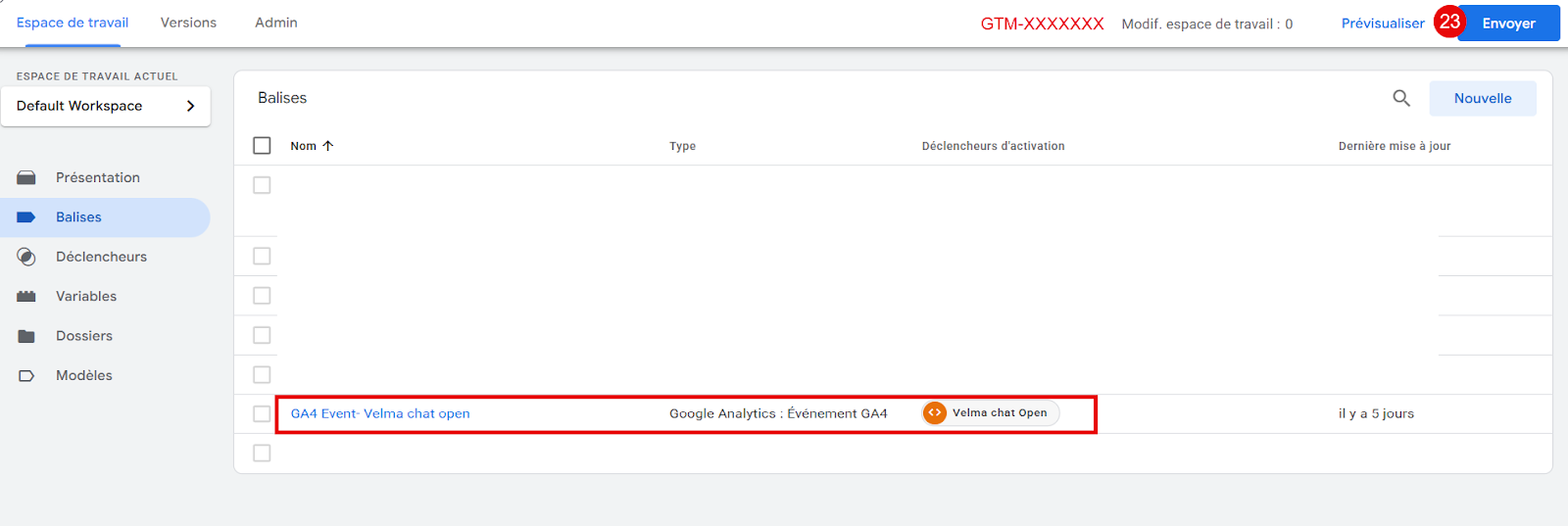
- Go to Tags → New.
- Name: Tag - Velma Chat Open (GA4)
- Tag Type : Google Analytics 4 – Événement
- Configuration :
- Configuration tag: select your existing GA4 Configuration tag
- Event name: velma_chat_open
- Event parameters (optional) : timestamp → 0
- Triggering: select Trigger - Velma Chat Open
- Save.
Step 5: Test using Preview Mode
- Click Preview in GTM.
- Enter your website URL and start the test session.
- On the site, open the Quicktext chat.
- In Tag Assistant, you should see:
- a velma_chat_open event in the event list
- The tag Tag - Velma Chat Open (GA4) under Tags Fired
Step 6: Publish
Once the test is successful:
- Click Submit → Publish.
- Give the version a name (ex. Velma Chat Open Event).
- Publish.
Optional: Verify in GA4
Test events first appear in DebugView / Realtime.
- Open GA4 → Admin → DebugView (while Preview Mode is active).
- Check that the velma_chat_open event is being received.
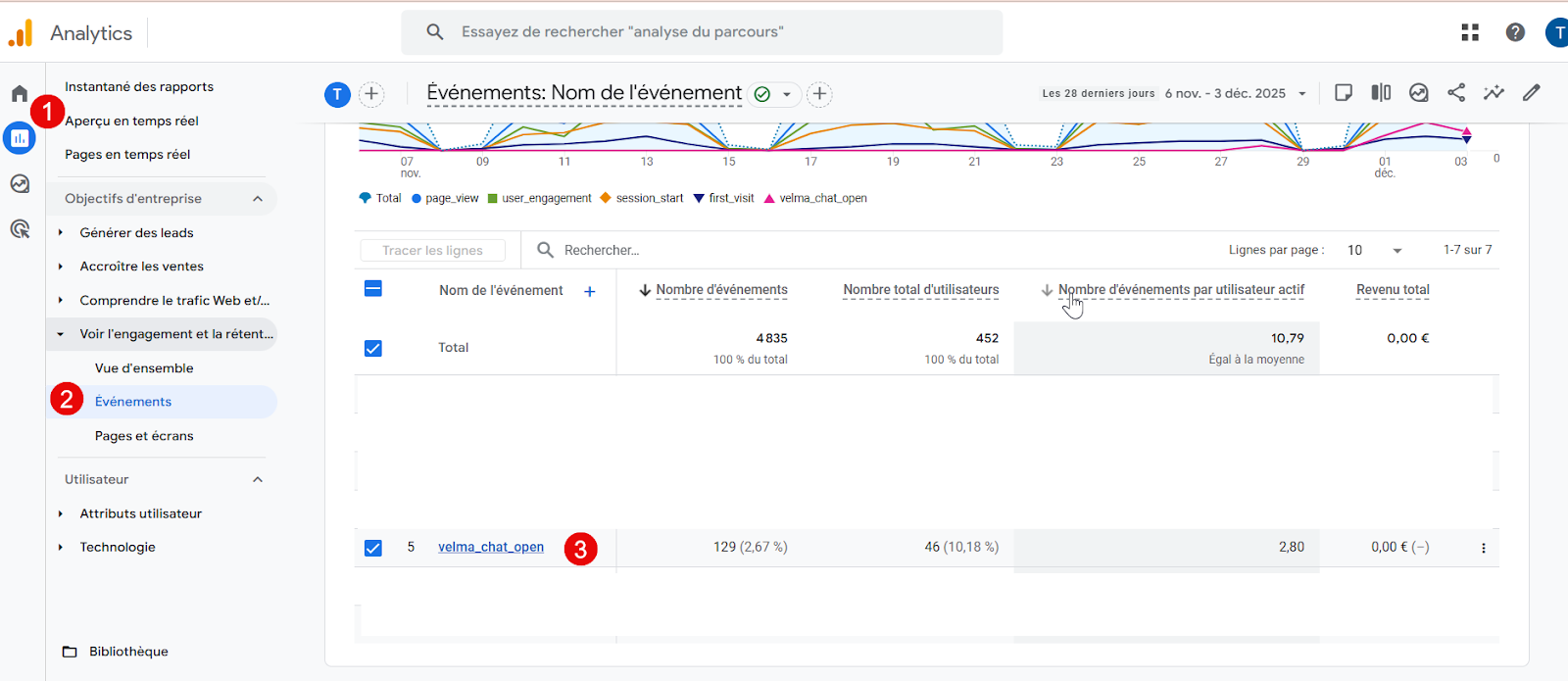
- After a few hours, you will also see it in Reports → Events.
Part 2 : Google Analytics 4 (GA4) Setup
Step 1: Mark the event as a conversion
Goal: track chat openings as an important business objective.
- Open GA4.
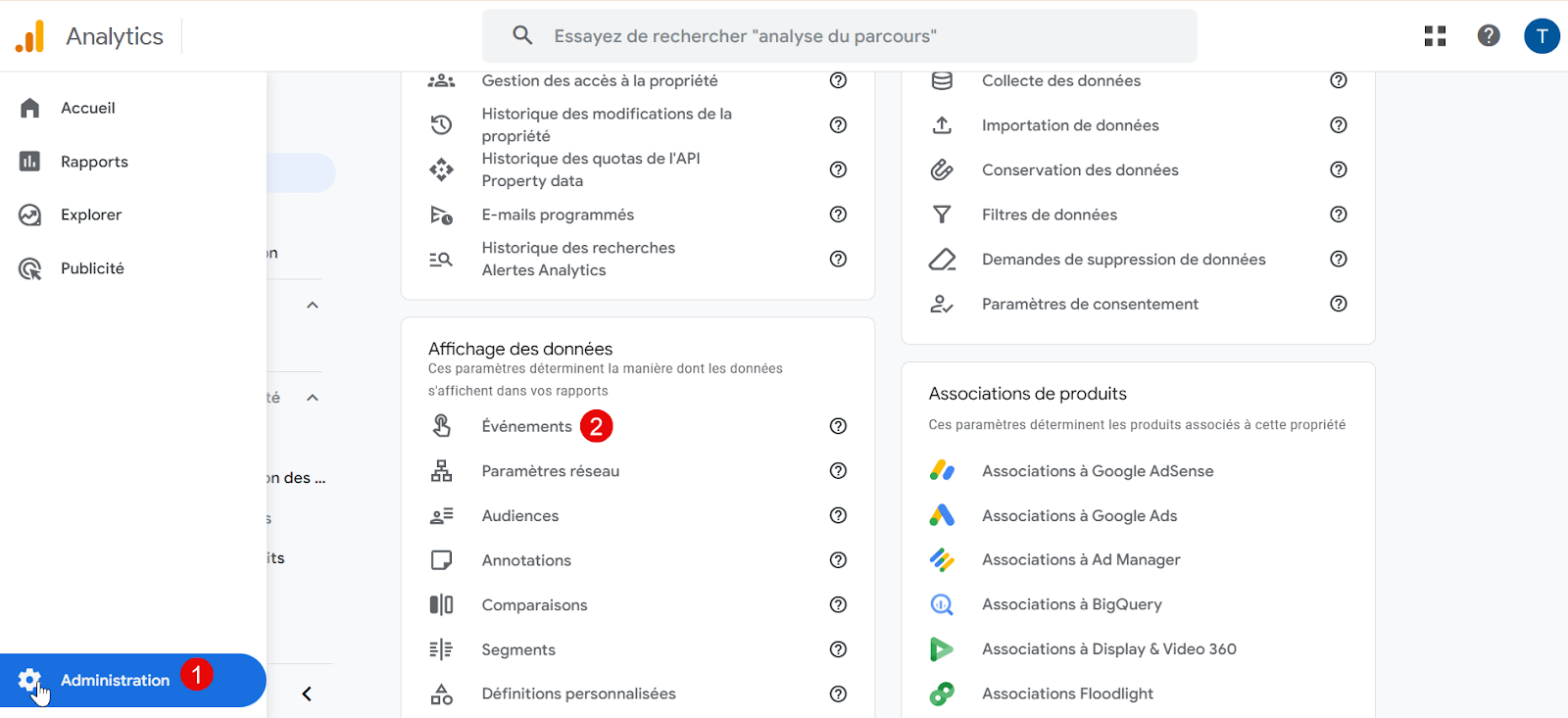
- Go to Admin → Events.
- Find the event velma_chat_open.
- Enable “Mark as conversion.”
You will then find this conversion in Admin → Conversions and in your GA4 reports.
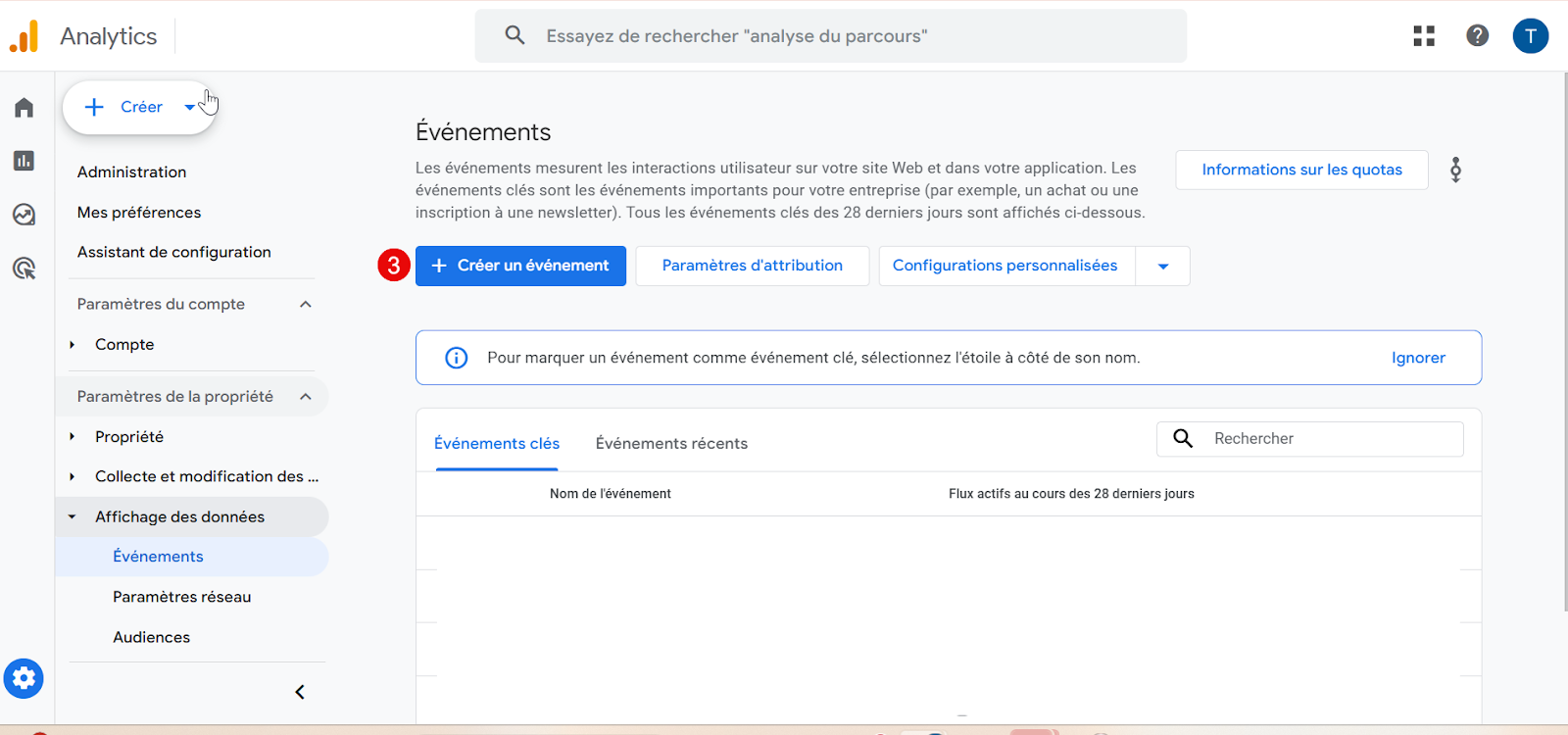
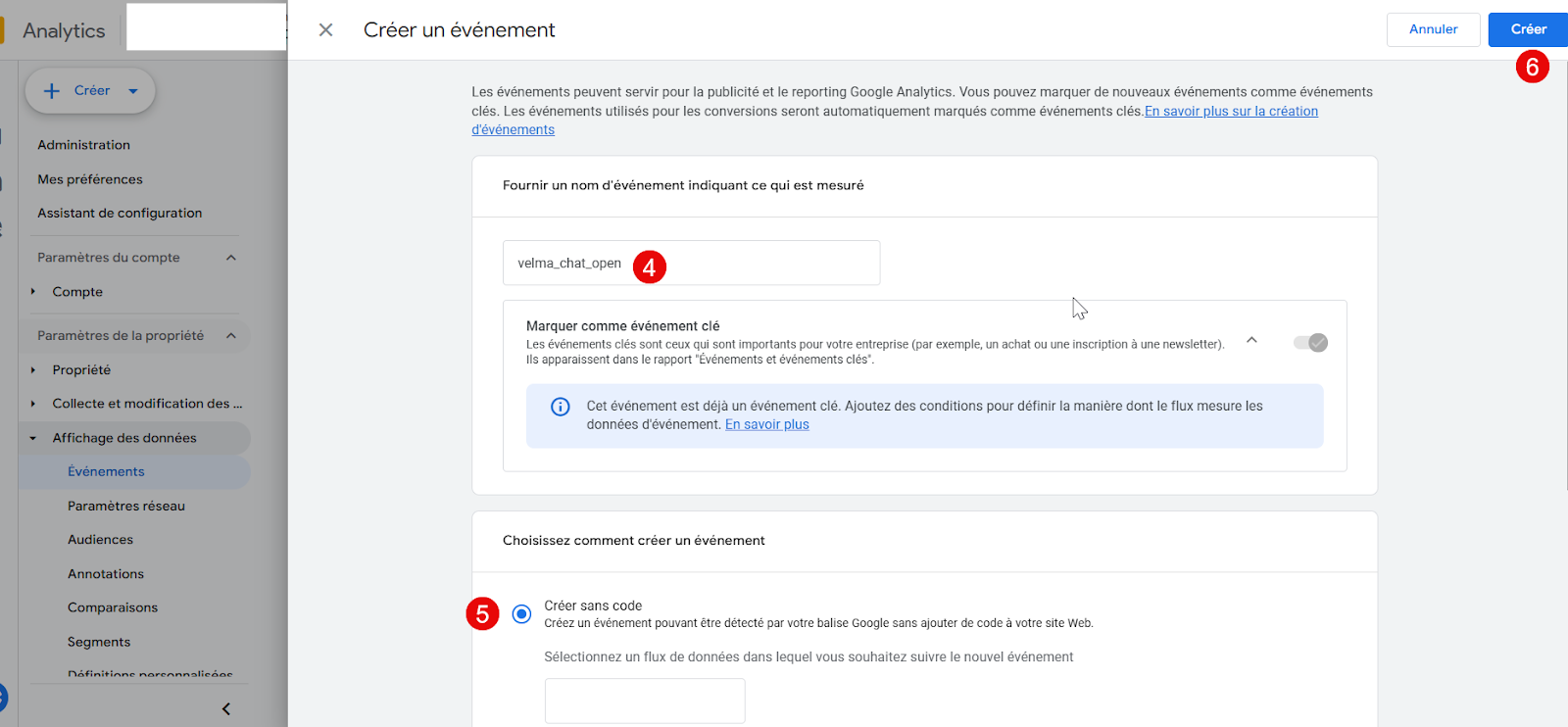
Step 2: View the event in GA4
GA4 automatically registers new events as soon as they are received.
So if velma_chat_open is already coming through, there is nothing to create manually.
- Go to Admin.
- Click Events.
- You will see velma_chat_open in the list once it has been collected (sometimes after a few minutes or hours).
- The event is now recognized in GA4.
💡 Important checks before starting
Before configuring the velma_chat_open event, please make sure of the following:
1) Check that the correct GTM account is connected
- Make sure you are logged into the right Google Tag Manager account (the one managing the website).
- Confirm you are working inside the correct GTM container installed on your site (e.g., GTM-XXXXXXX).
⇒ If the wrong container is used, tags will not fire on the website.
2) Check that the correct GA4 property is used
- Ensure you have access to the right Google Analytics 4 property.
- Verify that the GA4 Measurement ID (G-XXXXXXX) configured in GTM matches the correct website.
- If your organization has multiple GA4 properties, use the one that already collects traffic from this site.
⇒ A wrong Measurement ID means events are sent to the wrong property (or won’t be visible).
3) Check access permissions
To complete the setup:
- You need Editor/Admin access in GTM.